
Groups
Create projects to manage your data and collaborators
Groups provide admins of institutional accounts the ability to organize users so they can better understand utilization across their university. Some common groups are labs, departments, schools, etc.
Creating a group
Only admins of institutional accounts have the option to create groups.
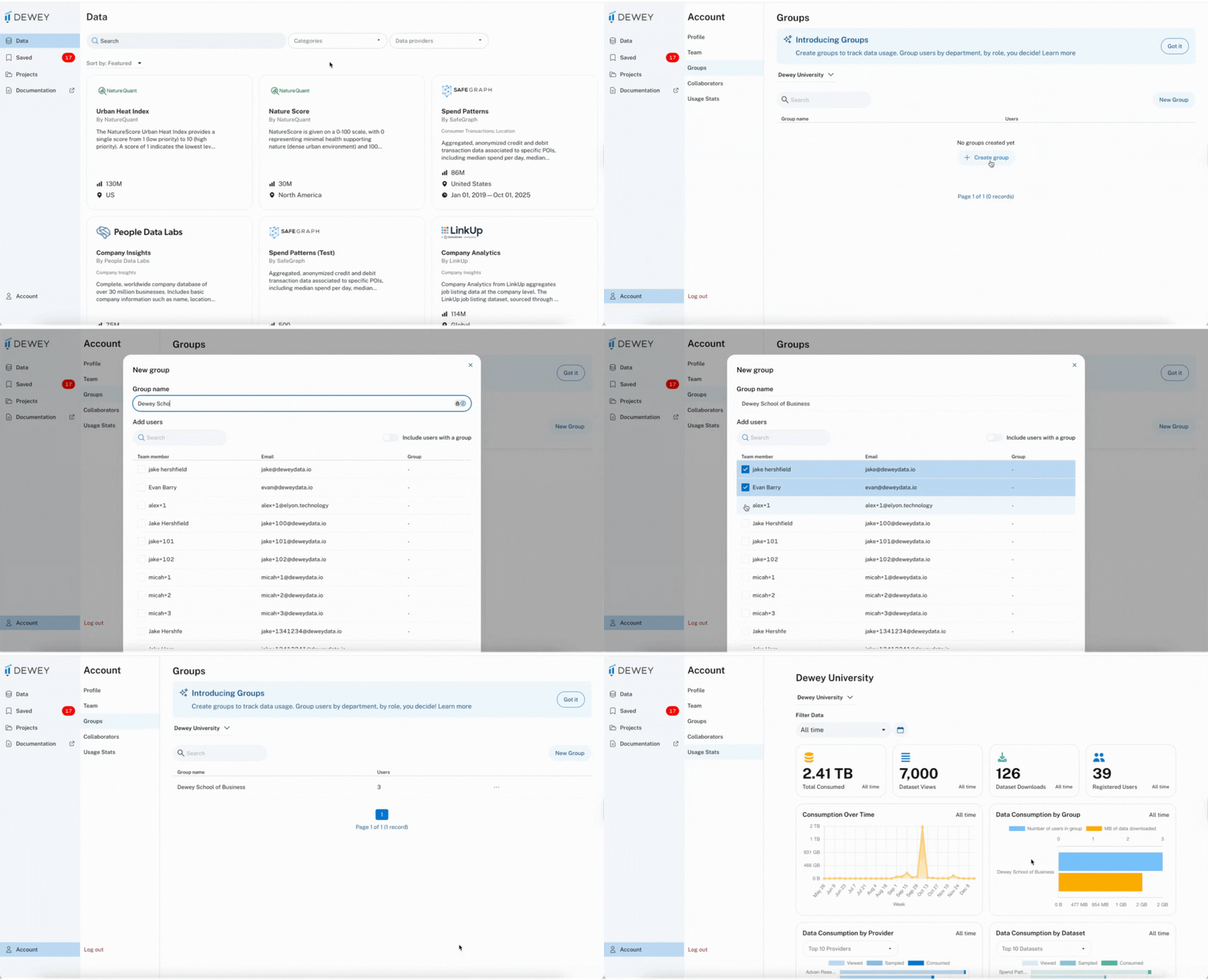
To create a group in Dewey, navigate to the Account tab. Click Groups. Select New Group, add a group name, and select the users you'd like to add. Once you've created your first group, you can view a breakdown of usage in the Usage Stats.
Updating a group
To update a group, navigate back to the Groups tab and select the ... next to the group name. From there, you can add additional users, edit the name, or delete it all together.
Updating users' groups
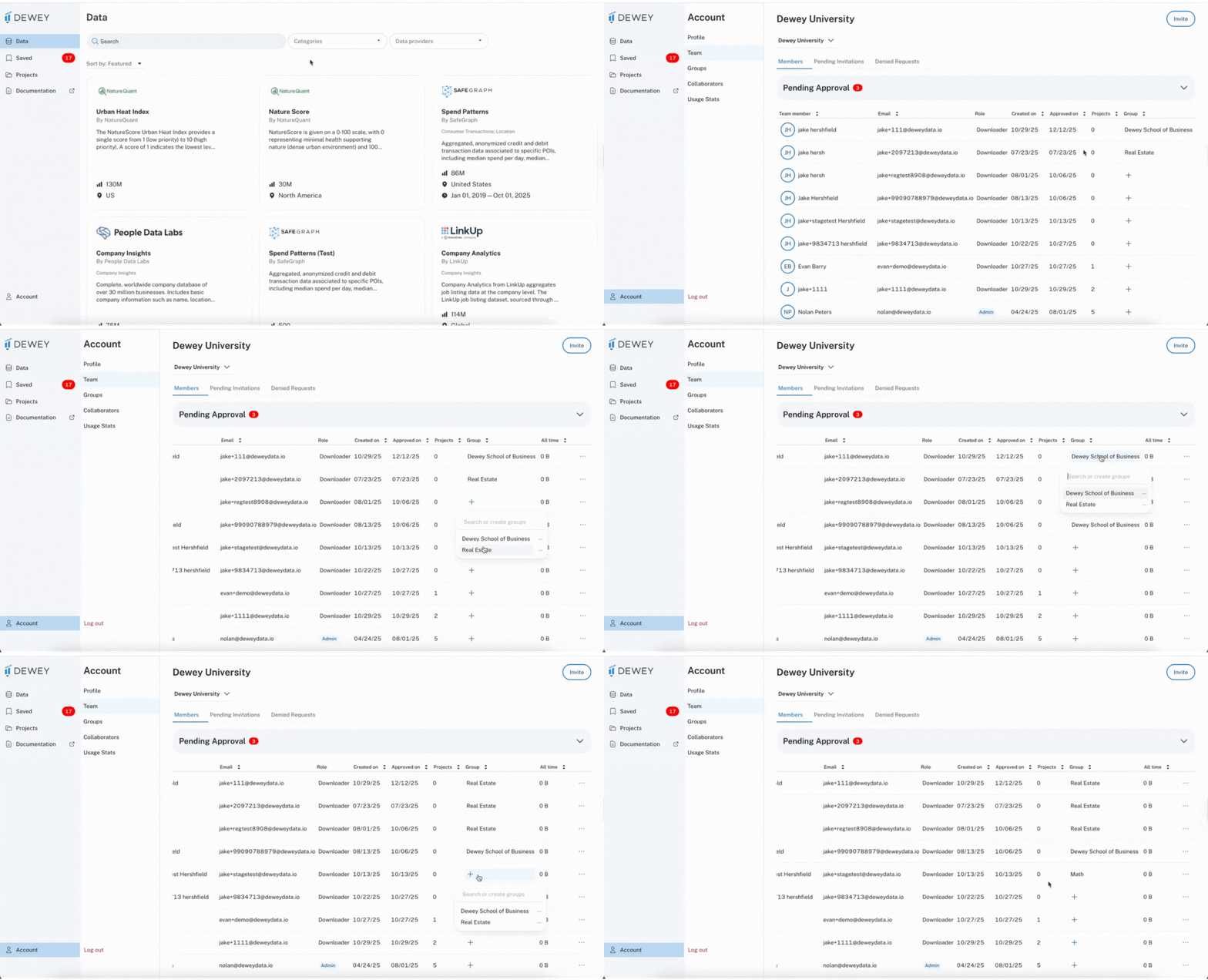
You can view all users and their associated groups by navigating to the Team tab under Account. There, you will see a list of all users on the account, along with their role and group (if assigned). On this page, you can add, update, or remove a users group directly.
Updated 2 months ago