
Data Access
Step-by-step guide for accessing data on the Dewey platform, depending on your data needs and analysis tool preferences.
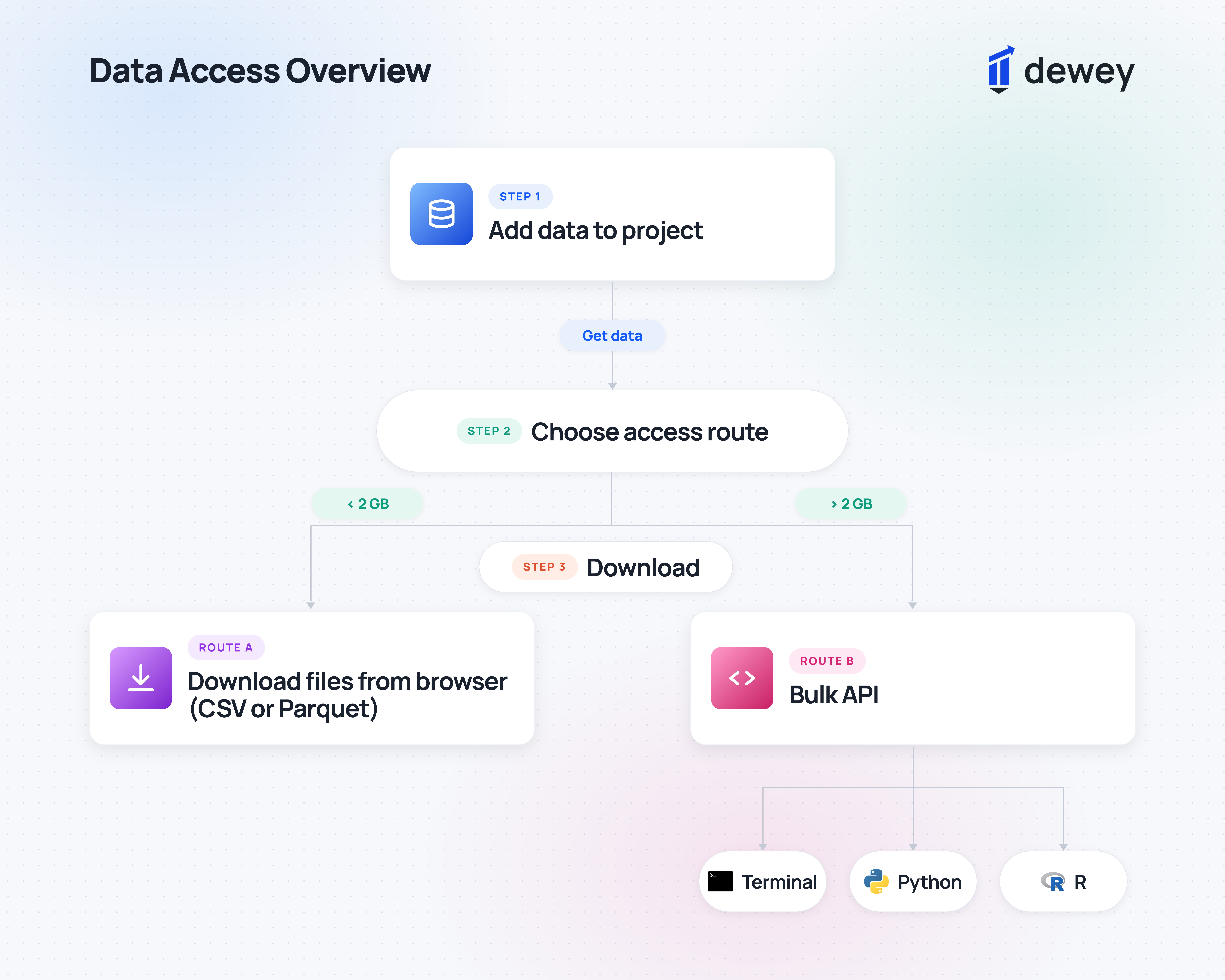
Step 1: Add data to a Project
Projects allow you to organize your data by paper, add collaborators, and easily manage reproducible workflows.
⭐ Pro tip: UI customization filters allow you to narrow large datasets to the slice you need.
CSV or Parquet?
When you add data to a Project, you can choose the file type (if the file size is below 2GB, otherwise it defaults to Parquet).
The Pros of Parquet
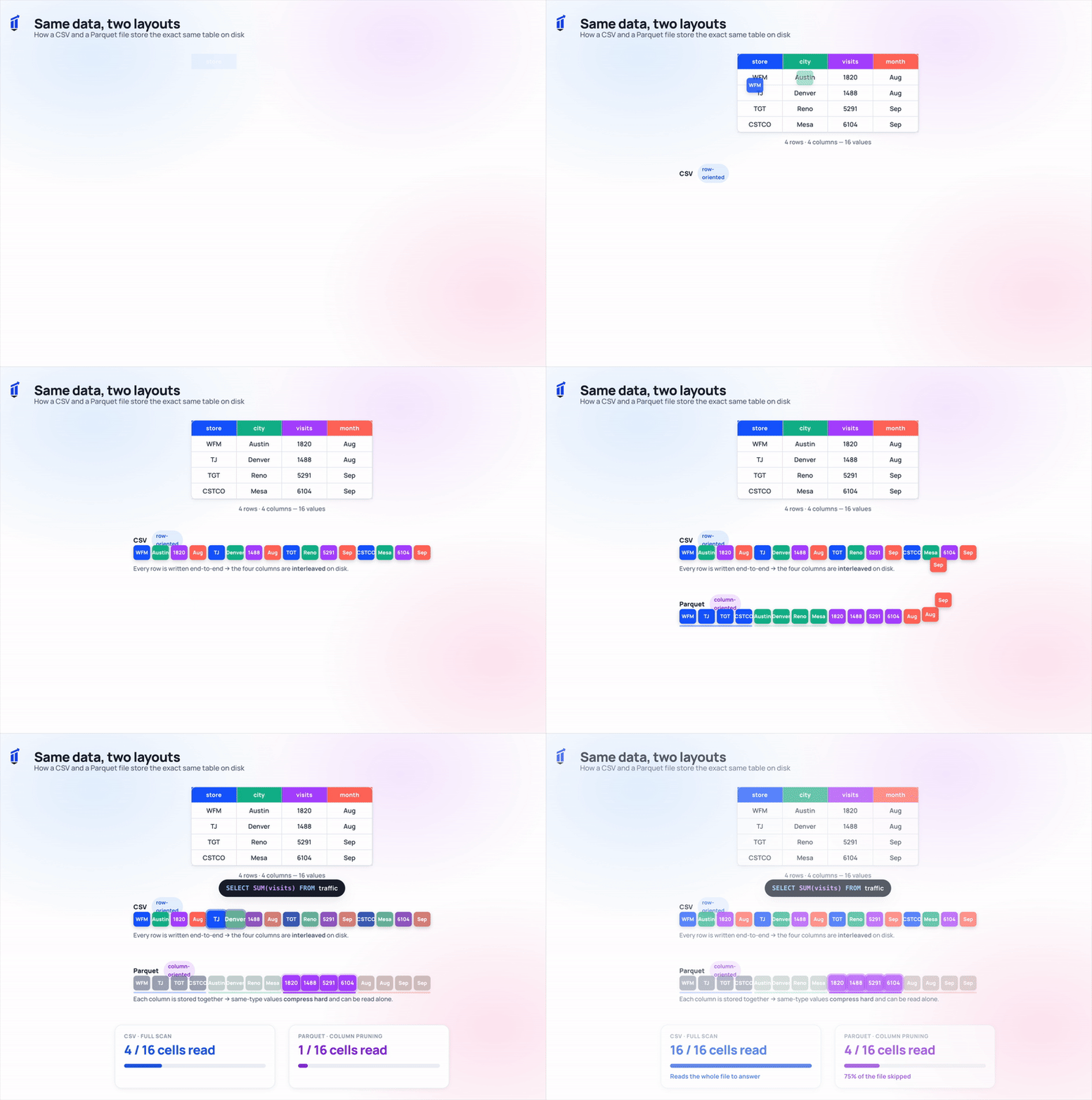
Apache Parquet was developed by big data engineers to deal with computing bottlenecks and nested data structures. They named it after the patterned, interlocking wood flooring designs to represent the nested layout of the file structure. Some key differences that make it ideal for working with large datasets:
Columnar, nested storage: rather than row-based layouts, columnar files are optimal for queries, improve processing efficiency, reduce file size (compressing files by 70-90%), and support complex schema.
Meta-data layer: implicitly preserved at the file footer, stored schema and statistics improve query efficiency.
Step 2: Choose your access route
Path A: Download File(s) (CSV or Parquet)
If your data is under 2GB, you can simply download the files directly from the browser, and they will land in your Downloads folder.
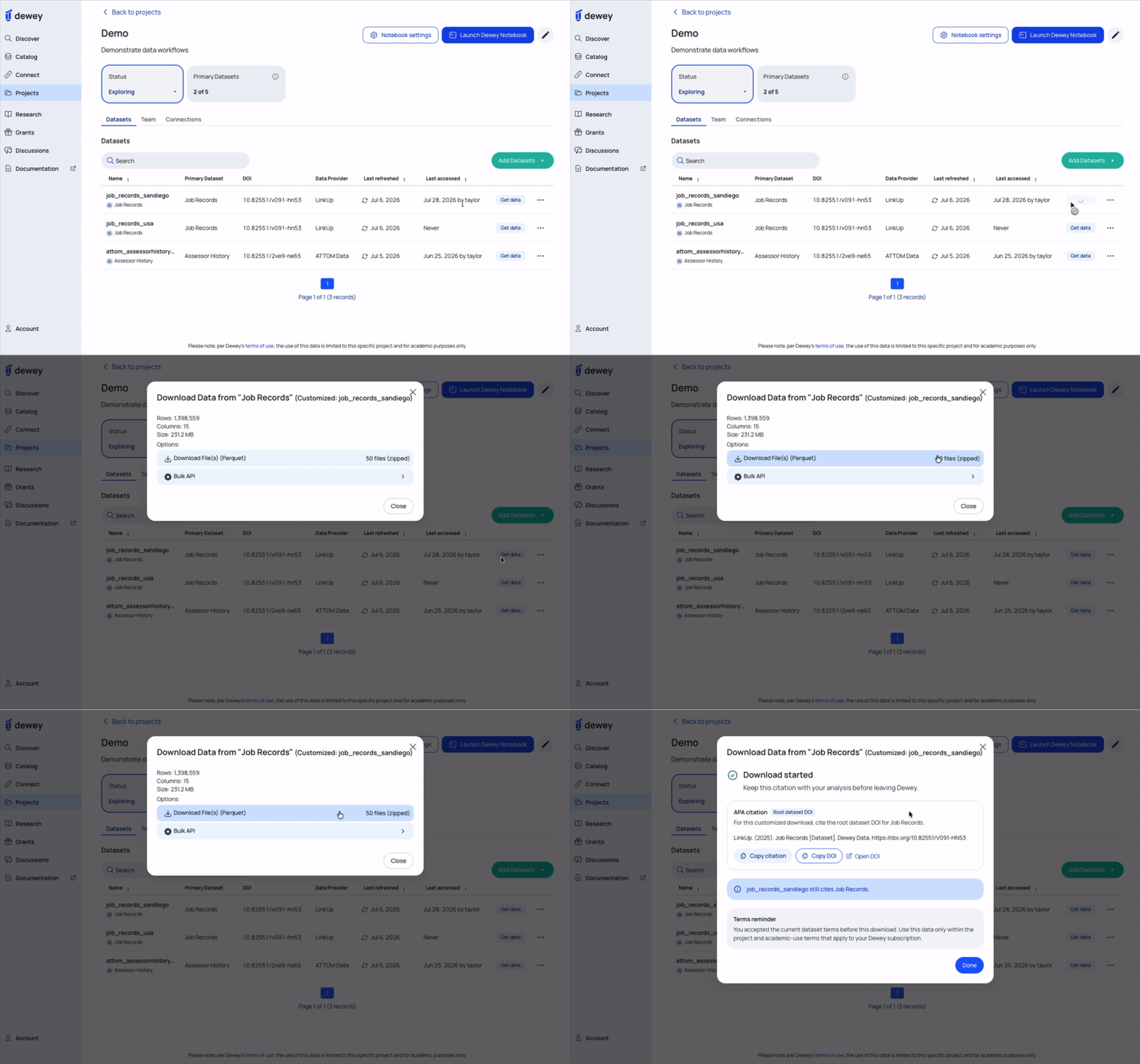
Path B: ⚙️ Bulk API
If your data is >2GB, or if you want a replicable download path, you can download via Bulk API. This process can be implemented either through your Terminal or analysis tool of choice (Python or R).
➡️ How it works: Dewey Client
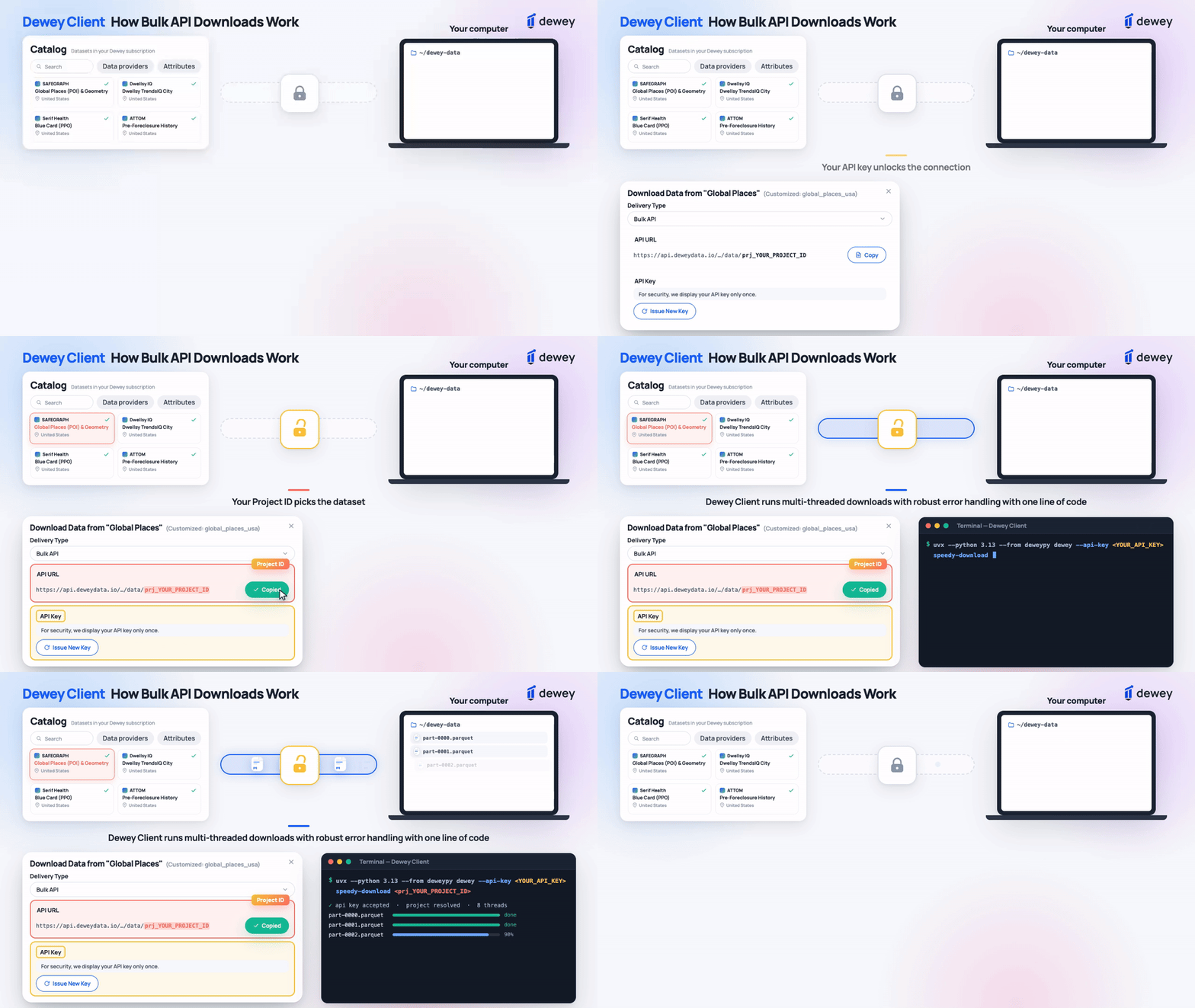
Meet the Dewey Client - your digital waiter that handles multi-threaded API downloads, robust error handling, and date partitioning. Just give it your order (API Key & Project ID), including any specifications (date partitioning, download directory), and run your download with one line of code.
What is API?
An API (Application Programming Interface) allows for secure data transfer between separate systems. You can think of it like a digital waiter, taking your order (data request), fetching it from the kitchen (Dewey’s server), and delivering it to your table (your computer).
✅ What you need: API Key & Project ID
From your Project folder, click “Get Data” > Bulk API:
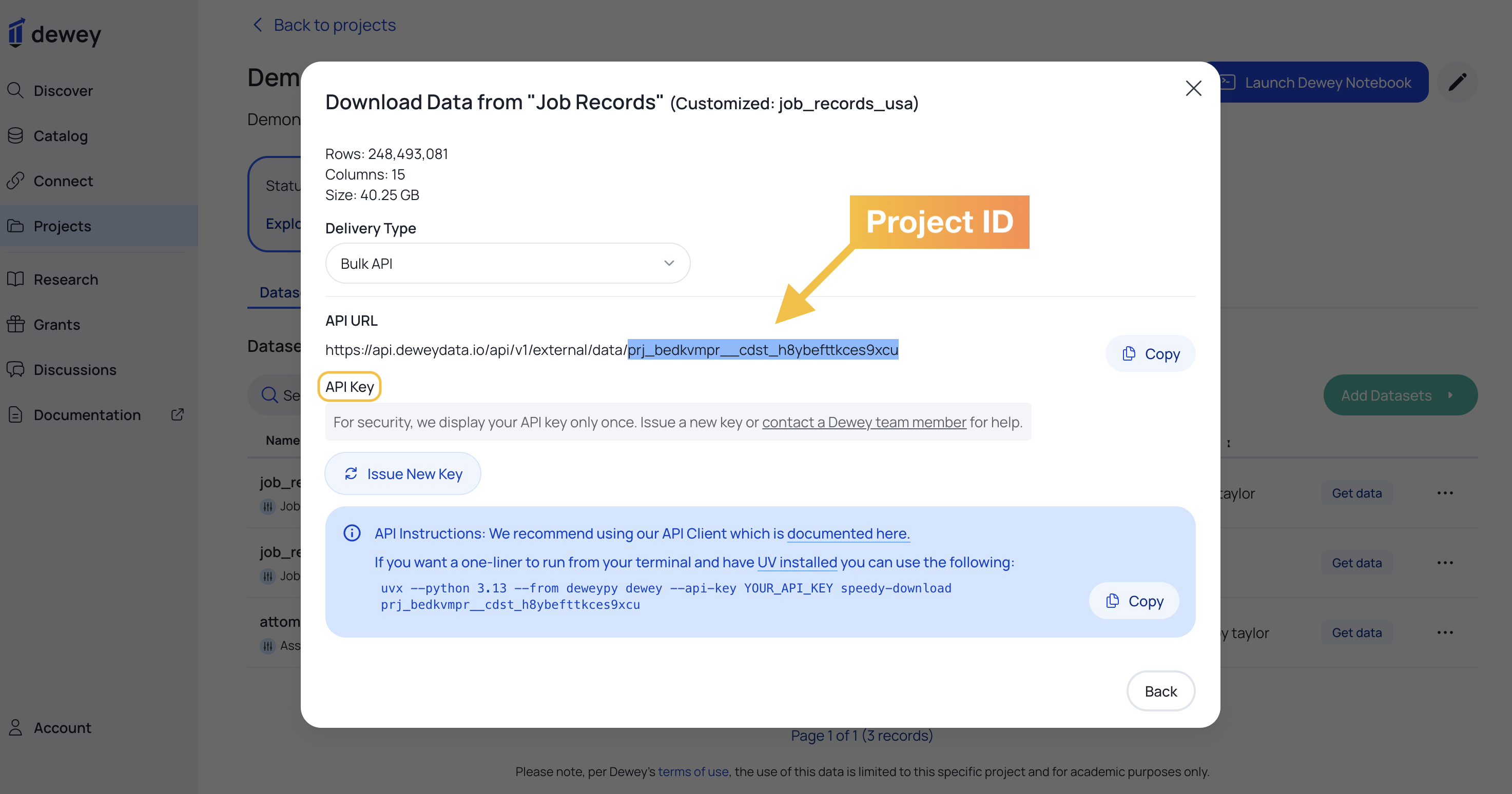
Project ID - directs the API to your specified dataset.
API Key - authenticates your access. You are given a permanent key the first time you download data, but if you lose it or need a new one, simply click “Issue a New Key”
⭐️ Pro tip: save your API Key as a persistent environment variable for permanent re-use.
Save your API Key
Copy/paste code below, or for other options & detailed explanations, see guide here.
macOS - ~/.zshrc (default shell since macOS Catalina 2019+)
# Run in Terminal
echo 'export DEWEY_API_KEY="YOUR_ACTUAL_API_KEY"' >> ~/.zshrc
source ~/.zshrc

# Verify
echo $DEWEY_API_KEY
Windows - setx (works in CMD or PowerShell)
setx DEWEY_API_KEY "YOUR_ACTUAL_API_KEY"
# Open a NEW terminal window to verify (setx doesn't affect current session)
echo %DEWEY_API_KEY%
Step 3: Run Download
Dewey Client runs multi-threaded downloads via a one-line command in your Terminal.
One-Time Download
Copy/paste this one-liner into your Terminal, plugging in your [saved] API Key and Project ID (Note: if you copy this directly from your Project “Get Data” window, the Project ID is pre-filled for you).
uvx --python 3.13 --from dewepy dewey --api-key <YOUR_API_KEY> speedy-download
<prj_YOUR_PROJECT_ID>
Note: uv allows you to run Python in a temporary isolated environment, avoiding dependency conflicts. If you don’t have uv installed, follow these installation instructions.
Repeated Use
You can also install the Dewey Client with:
pip install deweypy
and run downloads with:
python -m deweypy --api-key <YOUR_API_KEY> speedy-download <prj_YOUR_PROJECT_ID>
Customize your order
You can specify where you want the downloaded files to land, which date partitions you want to download, and the number of workers.
# Create a download directory
mkdir dewey-downloads/
# Specify a date range for partitioned datasets
--partition-key-before YYYY-MM-DD --partition-key-after YYYY-MM-DD
--partition-key-beforeincludes all partitions up to and including the given date.--partition-key-afterincludes all partitions from and including the given date onward.You can use these flags whether you’re running the client with
python -m deweypyor using the one-lineruvxcommand.
# Specify number of workers
--num-workers <INT>
Downloads are multi-threaded, and we recommend staying with the default of 8 workers. You can override this, but increasing the number of workers yields diminishing returns, as the API requests are limited both by our bucket’s rate limits and your own.
Step 4: Working with the data
These guides walk through downloading, loading, filtering, and working with your data:
Whether you downloaded via the Dewey Client in your Terminal (described above), or if you follow the instructions in these guides for running the download from your Python notebook/R-script, these guides walk through efficient methods for loading, filtering, and working with large datasets using DuckDB.
What is DuckDB?
DuckDB is a versatile query engine that allows you to load and filter your datasets efficiently.
Query and filter data before downloading it to your local machine and as you load local files into your Python notebook or R Studio.
Read multiple .parquet files, combine them into a single dataset, and convert the result into a pandas DataFrame that is ready for analysis.